Running an exercise
Facilitator guide
This is the end-to-end walk a facilitator takes to run a tabletop exercise — prepare a scenario, run the live session, and learn from the after-action review. It follows the bundled Ransomware Response Quick Start sample the whole way, so you can reproduce every step.
Fastest possible start
From Settings, the sample loader has a one-click demo that seeds an exercise, starts it, and releases the first inject — handy for a quick look. This guide walks the manual path so you understand each control.
Prepare
1. Load or build a scenario
You need a scenario before you can run anything. Either build one in the visual scenario builder (or Import JSON), or load a bundled sample.
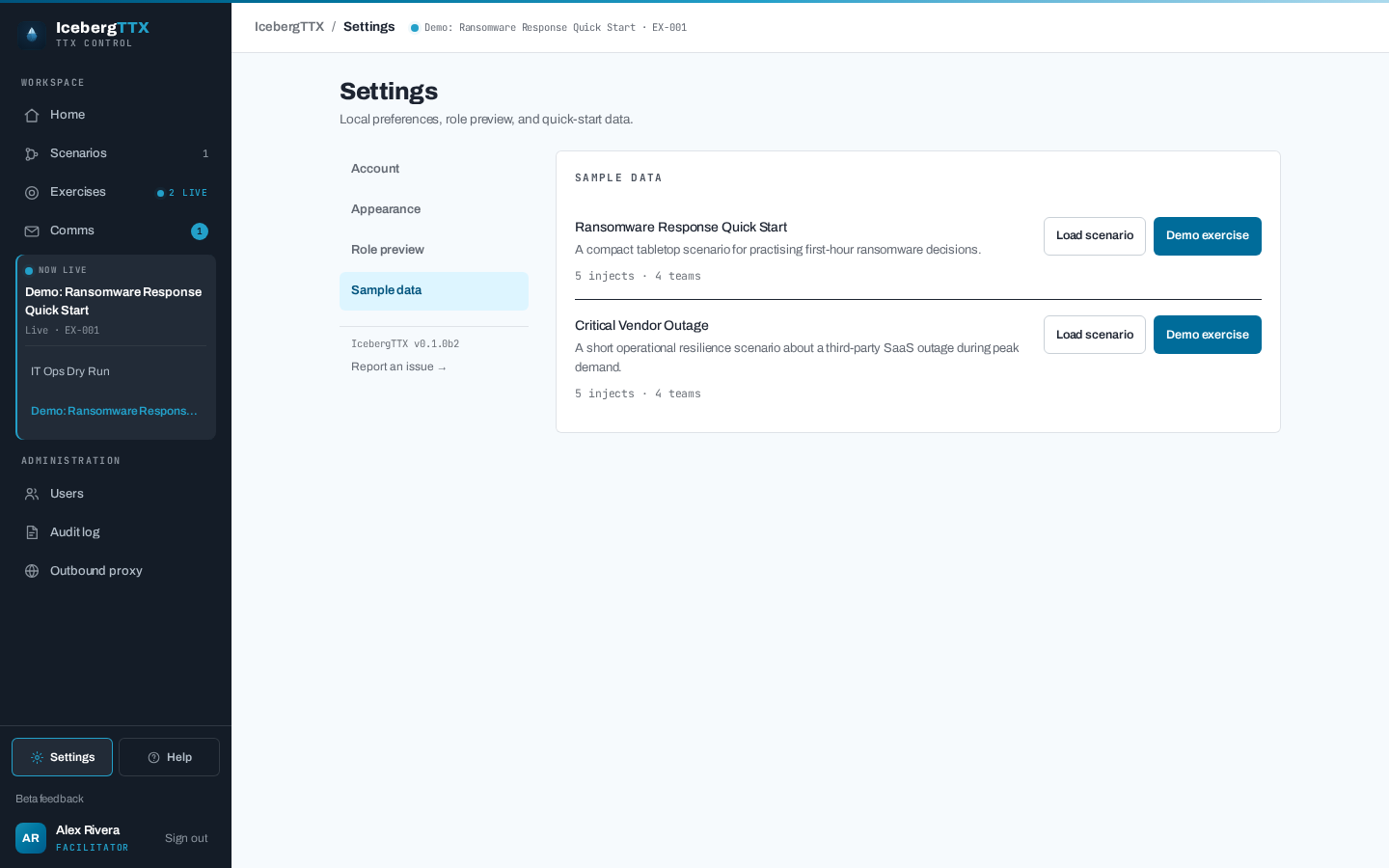
Open Settings and load the Ransomware Response Quick Start sample — a 45-minute, four-team scenario (IT Operations, Legal, Executive, Communications) with branching decisions and a triggered press enquiry.
The scenario cookbook has paste-ready recipes if you want to author your own patterns — linear drills, branching decisions, team targeting, and triggered comms.
2. Create an exercise
A scenario is the reusable script; an exercise is one run of it. From Exercises → New exercise, give it a title, pick your scenario, and optionally enable AI assistance (decision-quality assessment and suggested follow-up injects — needs an AI provider configured on the server).
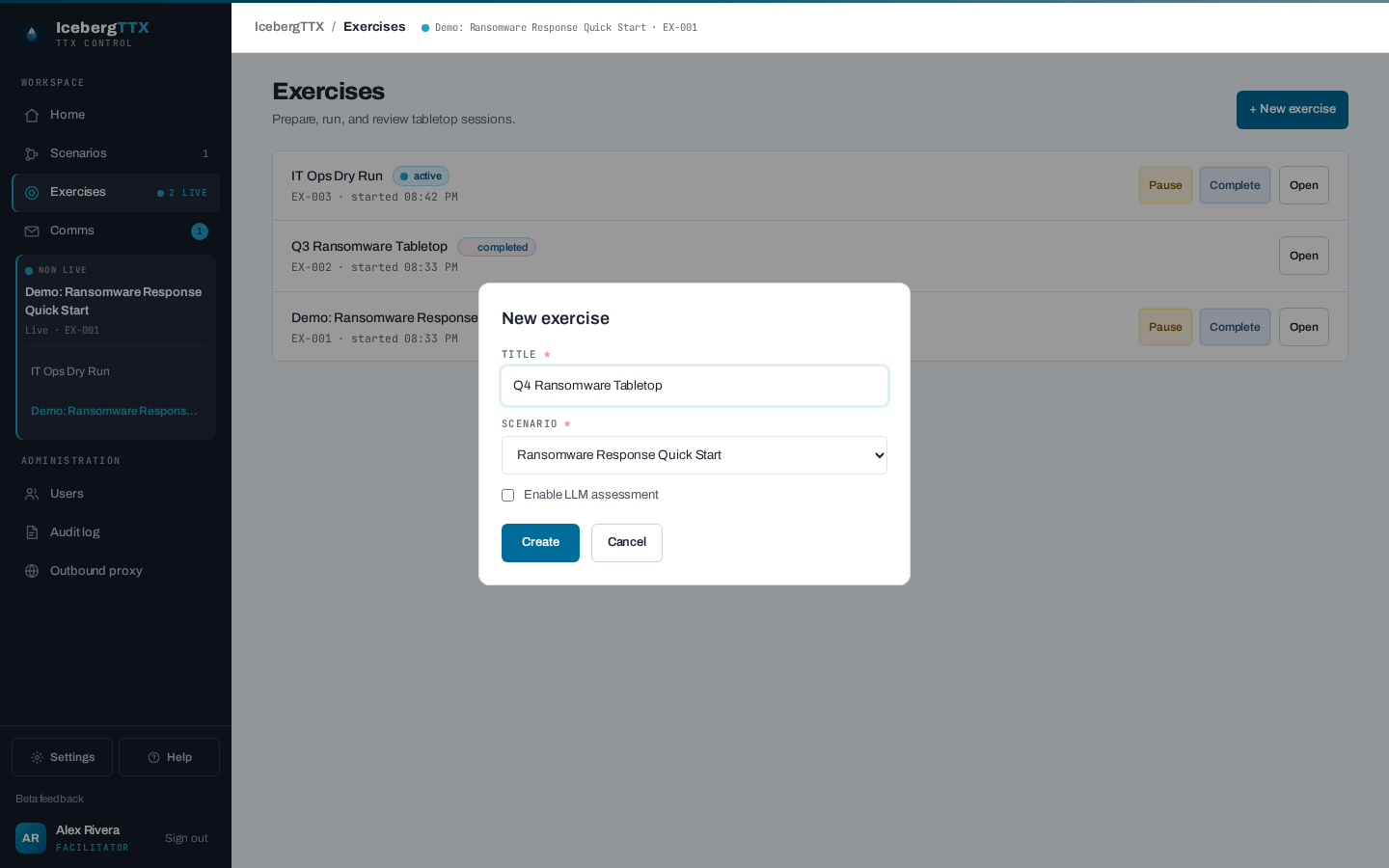
On creation, every inject is pre-seeded as pending — targeted injects once per team, shared injects once. Nothing is released yet: you decide what reaches the room and when (see step 5).
3. Enrol participants and teams
Open the exercise's facilitator console and use the Participants panel to enrol
registered users. Each member is assigned a team (group) — for the ransomware sample,
map people onto it_ops, legal, exec, and comms. A member's team defaults from
their profile team when it matches one of the scenario's teams; you can change it any
time.
Participants join at /exercises/{id}/participate; observers get the same view read-only.
Run
4. Start the exercise
Press Start. The exercise moves draft → active and its start time is recorded.
The lifecycle is a simple state machine — Pause halts new submissions
(active → paused), Resume returns to active, and Complete ends it
(→ completed, terminal).
5. Release injects
The facilitator console is a three-pane console: the inject tree on the left, the response feed in the middle, and participants / AI suggestions on the right.
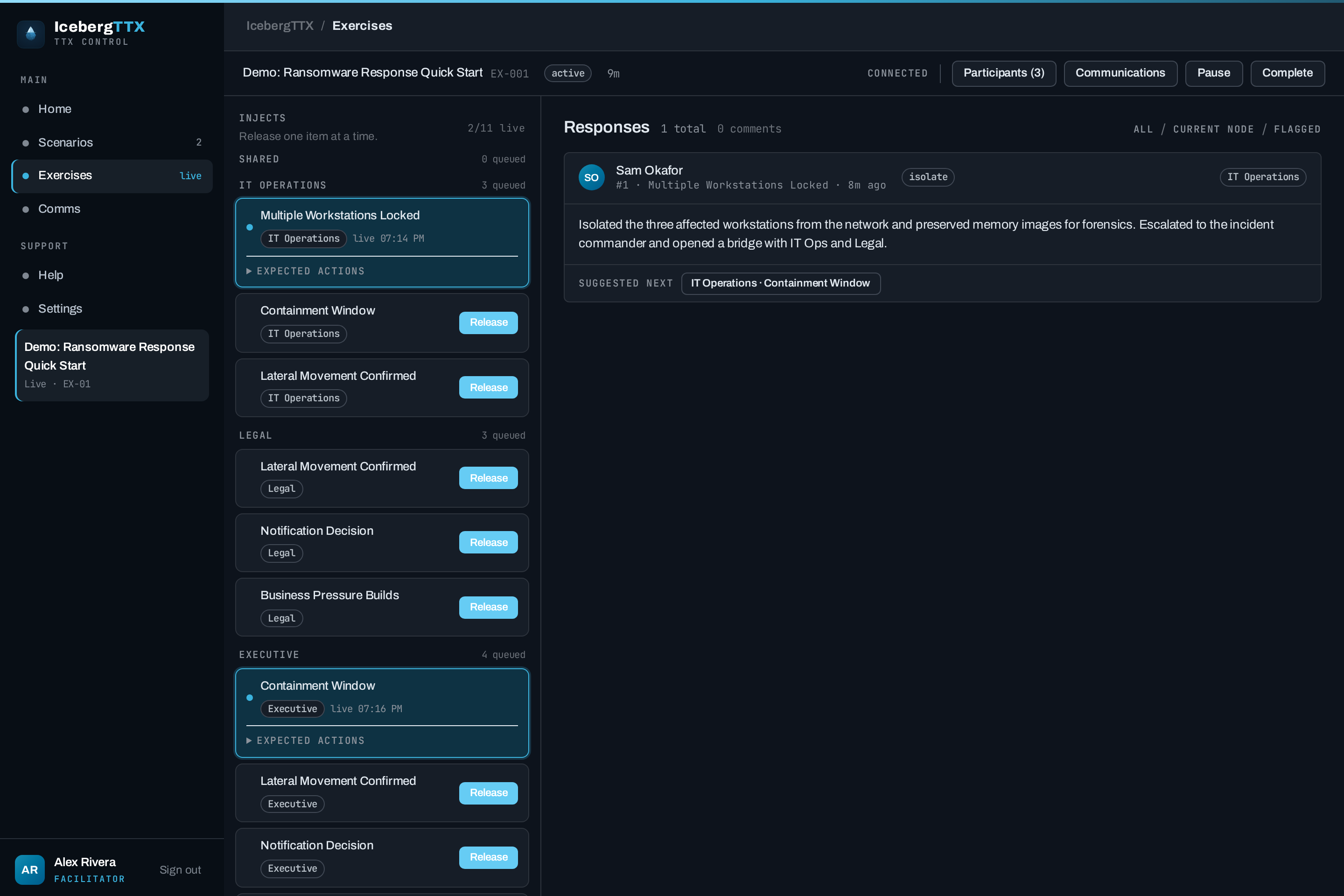
Injects are manual by default. You press Release when the room is ready, and
participants on the targeted teams receive the inject instantly over WebSocket. Release is
only allowed while the exercise is active, and only for a pending inject. The
Ransomware Response sample is entirely manual, so this guide's walk-through never waits on
a clock.
Injects can also be scheduled. An inject with a release_at_minutes value auto-releases
that many minutes after the exercise starts, and the console shows a live countdown on
it. The clock is pause-aware: pausing the exercise defers the timer, and resuming re-arms
it with the remaining offset — a 20-minute inject in an exercise paused for 5 minutes fires
25 minutes after the start, not 20.
Scheduling never takes the room away from you. A scheduled inject can still be released early, and its schedule can be cancelled outright, from the same control:
- Set or change a schedule on any pending inject — the clock icon in the inject tree.
- Release early — the ordinary Release button, which cancels the pending timer.
- Cancel the schedule — reverts the inject to manual-only release.
A slow room gets the inject late, not never
A timer decides when an inject lands, never which branch the team is on. If the countdown expires while they are still working on the inject before it, the release is deferred — and lands the moment their response advances the team onto it, since the offset has by then already passed.
So you can set an offset for when the inject should ideally arrive, without having to guess how fast the room will move. See the scheduled-release recipe.
Who chooses the branch
Two different decisions, and they belong to two different people:
- The team chooses the path. The option they select advances their progression cursor to exactly one next node. That is the whole point — their decisions have to carry consequences.
- You choose the pace. You review the response and release that inject when the room is ready — now, later, or not at all.
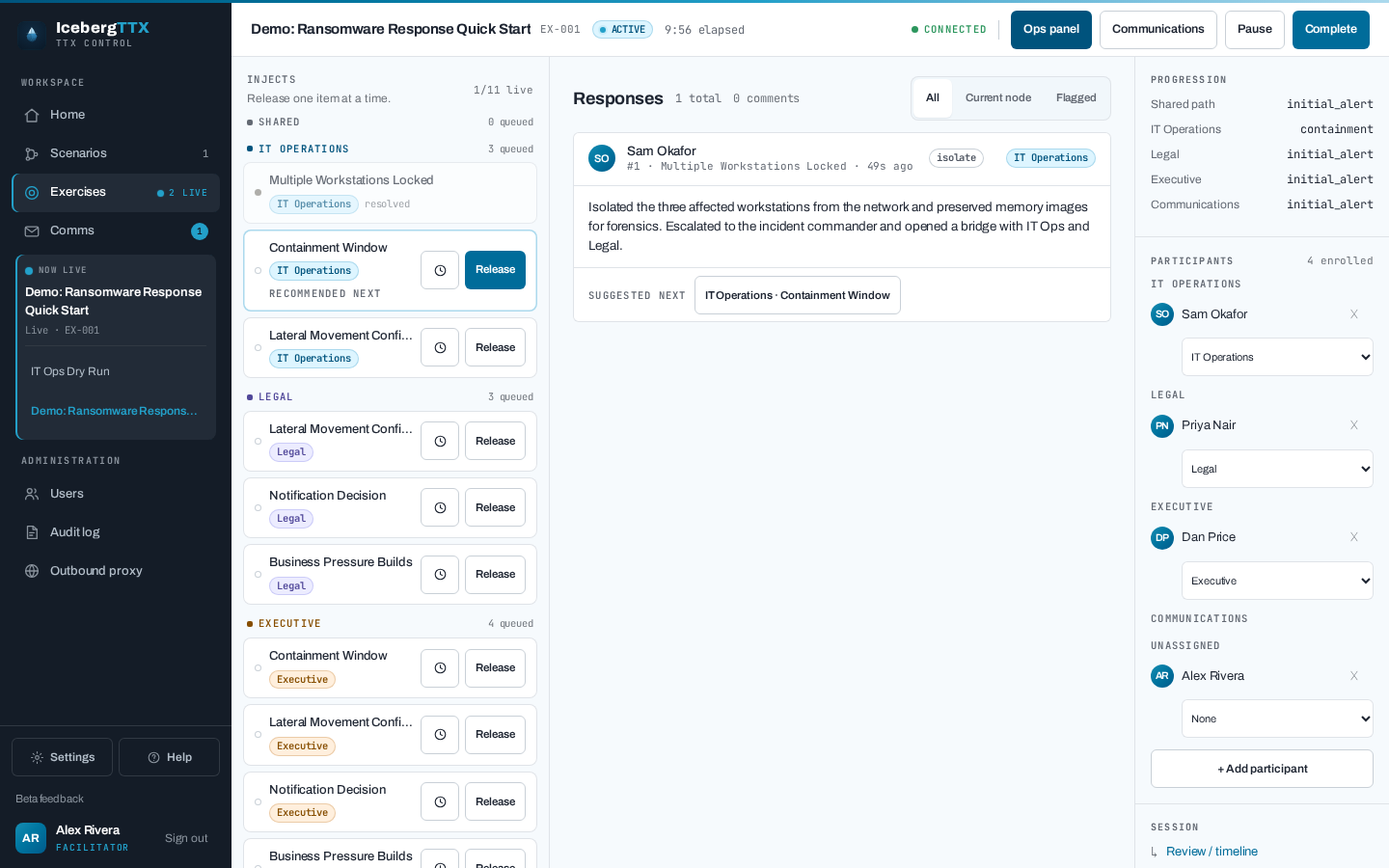
What you cannot do is overrule the choice. The response card surfaces the team's
resolved next step as a Suggested next button; releasing the branch they did not pick
is rejected with 409 Inject is not the current branch for its group.
So the scenario never picks a branch on its own — the route through the tree is theirs, and the pace is yours. The one thing that can reach participants without you is a scheduled inject (above): its countdown fires by itself, but only on a node the team has reached, or on one no branch links to at all. A timer never chooses a branch, and never jumps the room.
One response settles the branch for the whole team
The cursor is per team, not per person. The first response commits the team to that branch, and the alternatives can no longer be released to them.
6. Monitor responses and AI assessment
Each response card shows the participant's stance and free-text reasoning alongside the inject's expected actions — the evaluator cues authored into the scenario. With AI assistance enabled, the model adds a decision-quality rating (good / adequate / poor) and a short assessment, and can propose an ad-hoc follow-up inject you approve or dismiss from the right pane. The Flagged filter surfaces responses the AI rated poor.
7. Simulate communications
The Communications inbox is a two-pane inbox/outbox for regulator, press, and executive messages. Click Inject inbound to send a message from an external entity to specific teams during the exercise.
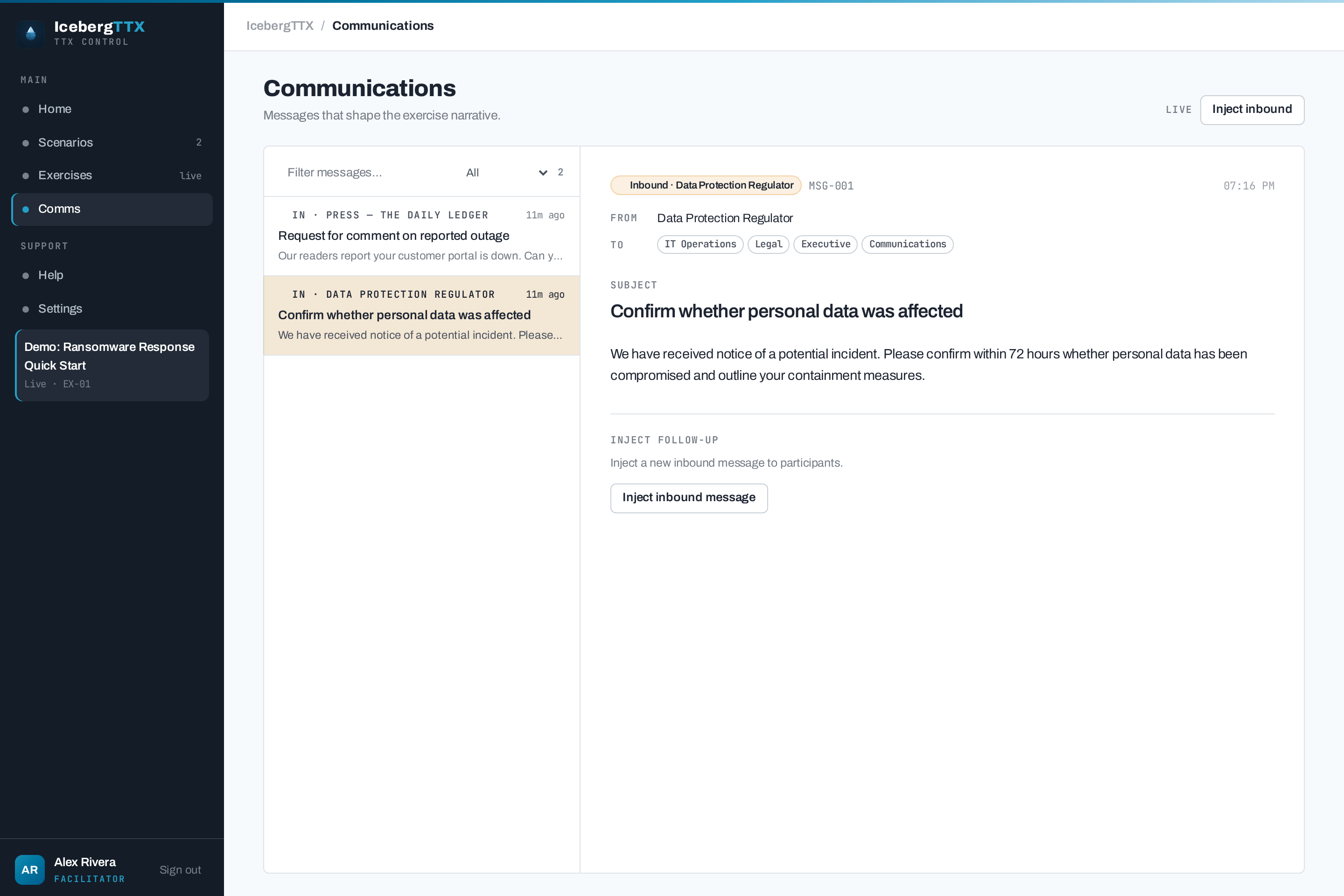
Scenarios can also trigger comms automatically: releasing an inject with a
triggers_communications entry drops the message into the inbox after its configured
delay. In the ransomware sample, releasing the Notification Decision inject brings a
press "Request for comment" a couple of seconds later. See the
triggered-comms recipe.
8. Complete the exercise
When the scenario has played out, press Complete. This records the end time and unlocks the after-action review.
Learn: review, report, and export
Completing an exercise opens up three after-action outputs.
Review and replay
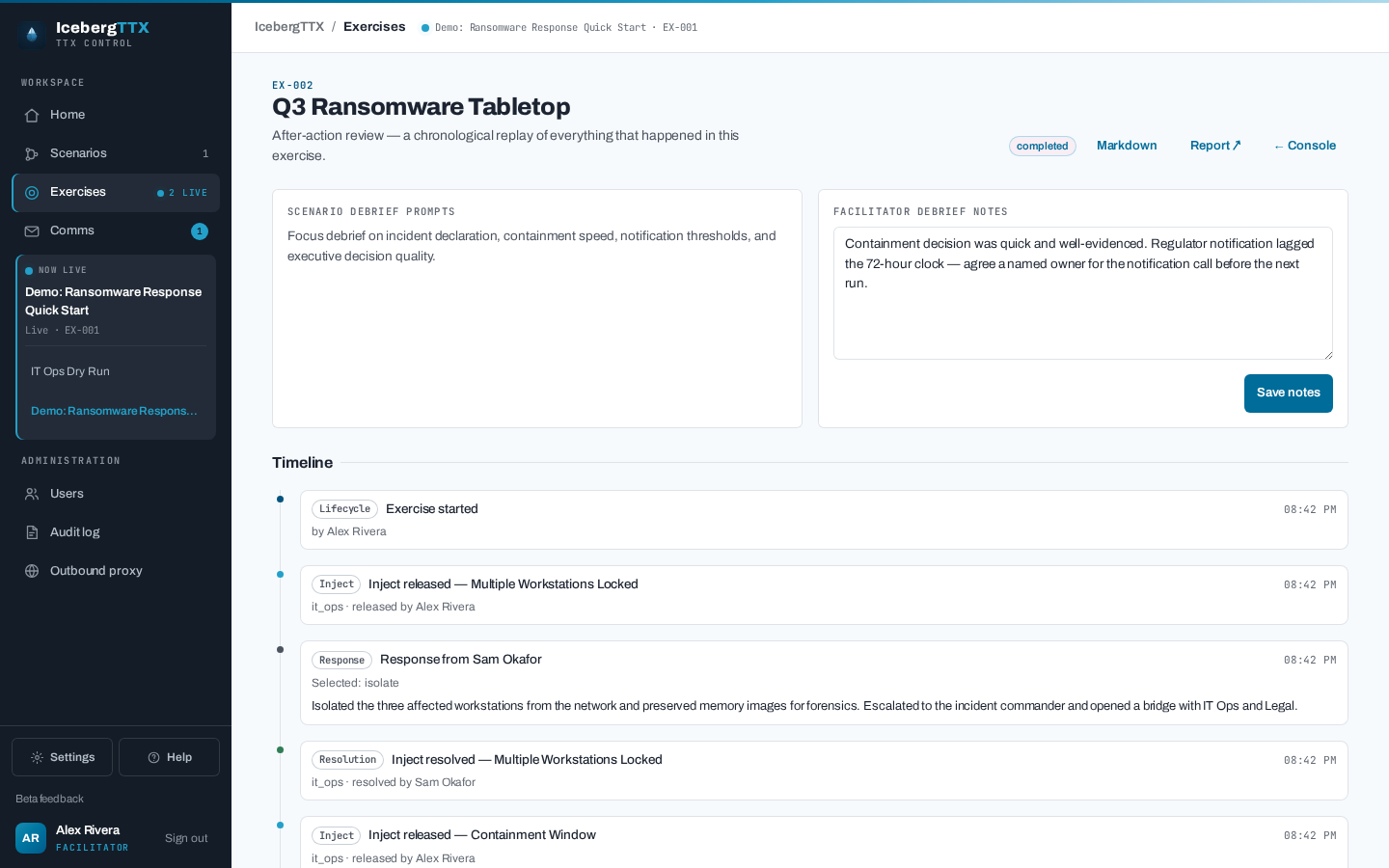
The Review page (/exercises/{id}/review) reconstructs the exercise as a single
chronological timeline — inject releases, responses (with decision-quality),
communications, comments, and state changes, merged in order. Beside it, the scenario
author's debrief_notes show read-only next to an editable facilitator-notes box for
your own observations.
Generated report
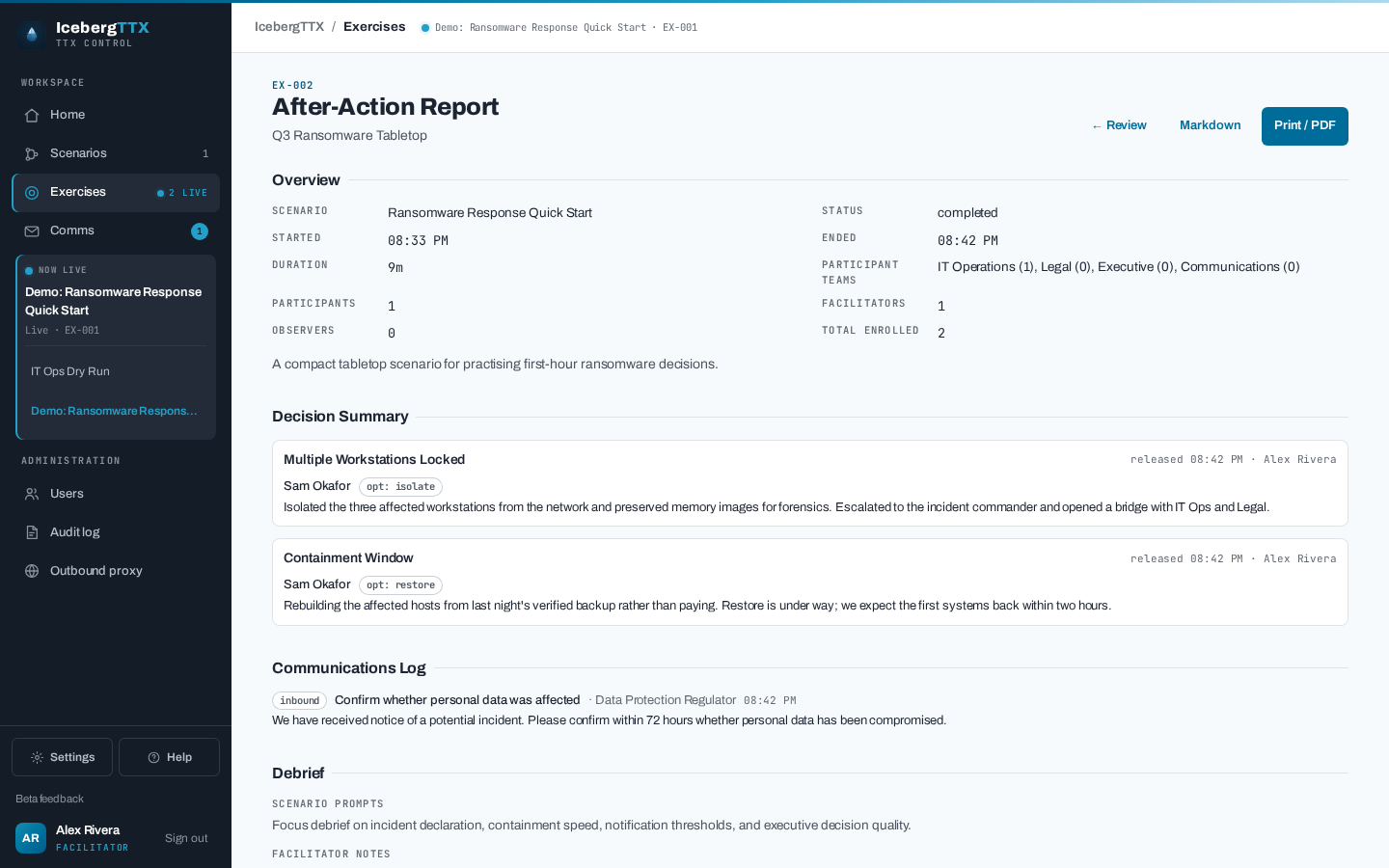
The Report page (/exercises/{id}/report) assembles a shareable after-action report:
- Overview — scenario, state, start/end, duration, teams, participant count
- Executive summary — optional, AI-drafted (needs an AI provider and AI assistance enabled on the exercise) and facilitator-editable
- Decision summary — released injects in order, with responses and assessments
- Communications log and the debrief (scenario prompts + your notes)
Use Print / PDF to hand it out, or download the Markdown via /report.md.
Export the raw record
For analysis or archival, export the full transcript as JSON (/export — injects,
responses, comments, members) or the responses table as CSV (/export.csv). All
after-action outputs are owner-only and audit-logged.
Next: the scenario cookbook for authoring patterns, or scenario authoring for the full JSON schema.